

Create a website with AI (NEO)
Describe what you want, and NEO — FloNeo's AI — builds the first version for you. You stay in control the whole way: NEO checks its understanding with you at every step, and nothing is generated until you press Generate website.
Time: about 2–3 minutes from idea to editable site (the build itself took about a minute in our test). Credits: a build usually uses 10–26 credits — about 10 for a landing page, 26 for a multi-page website. You only pay for what NEO actually uses. See Plans, credits and billing.
The 7 steps at a glance
| Step | Screen | What you do |
|---|---|---|
| 1 | Describe your idea | Type your idea, attach references (optional), press Build |
| 2 | NEO enhanced your website idea | Check the name, type and richer description → Looks good |
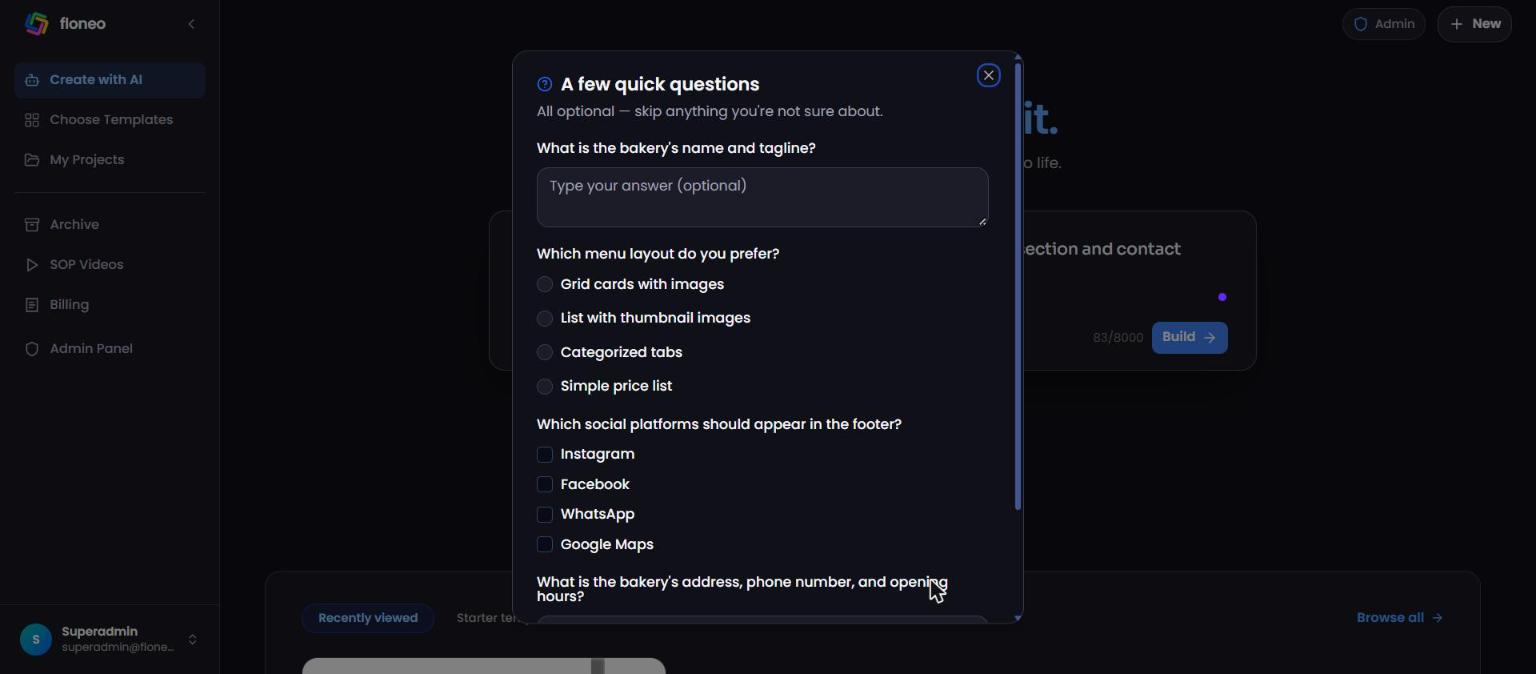
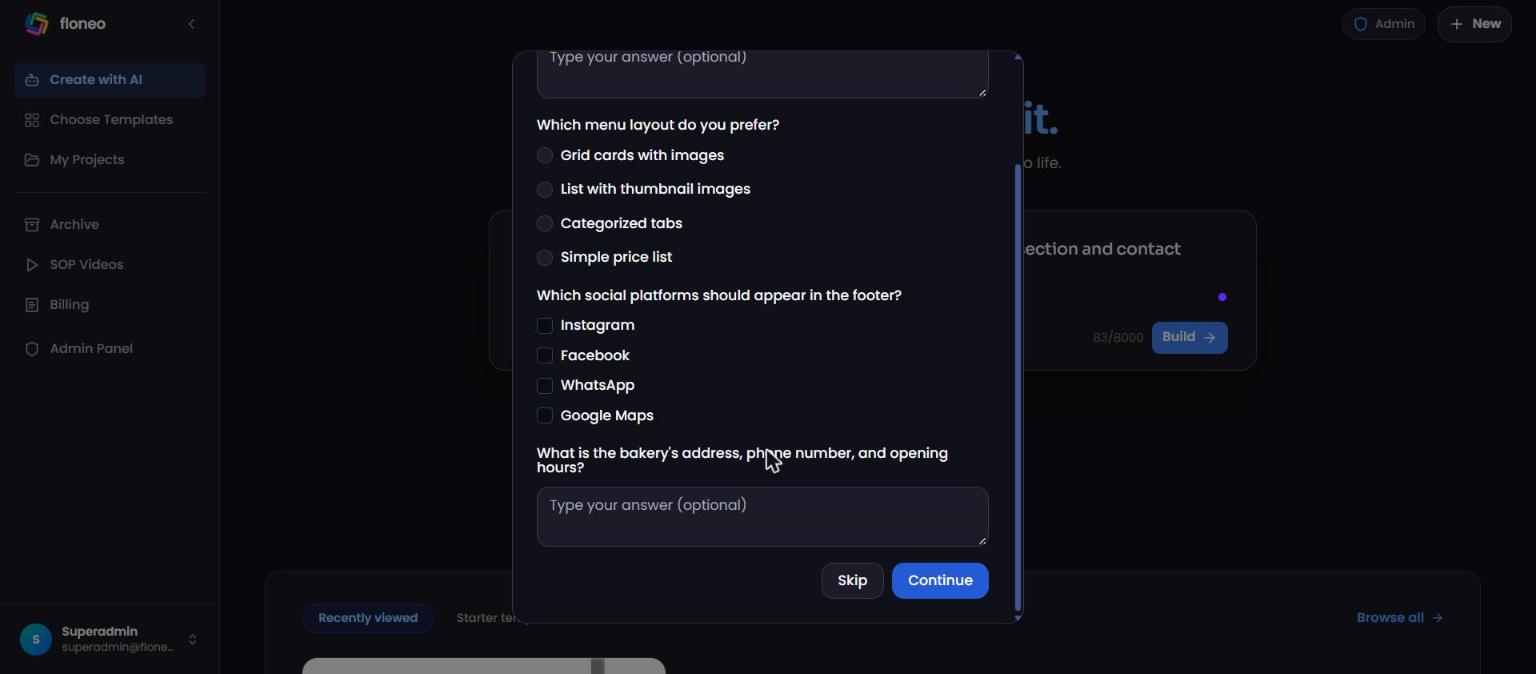
| 3 | A few quick questions | Answer what you like → Continue (or Skip) |
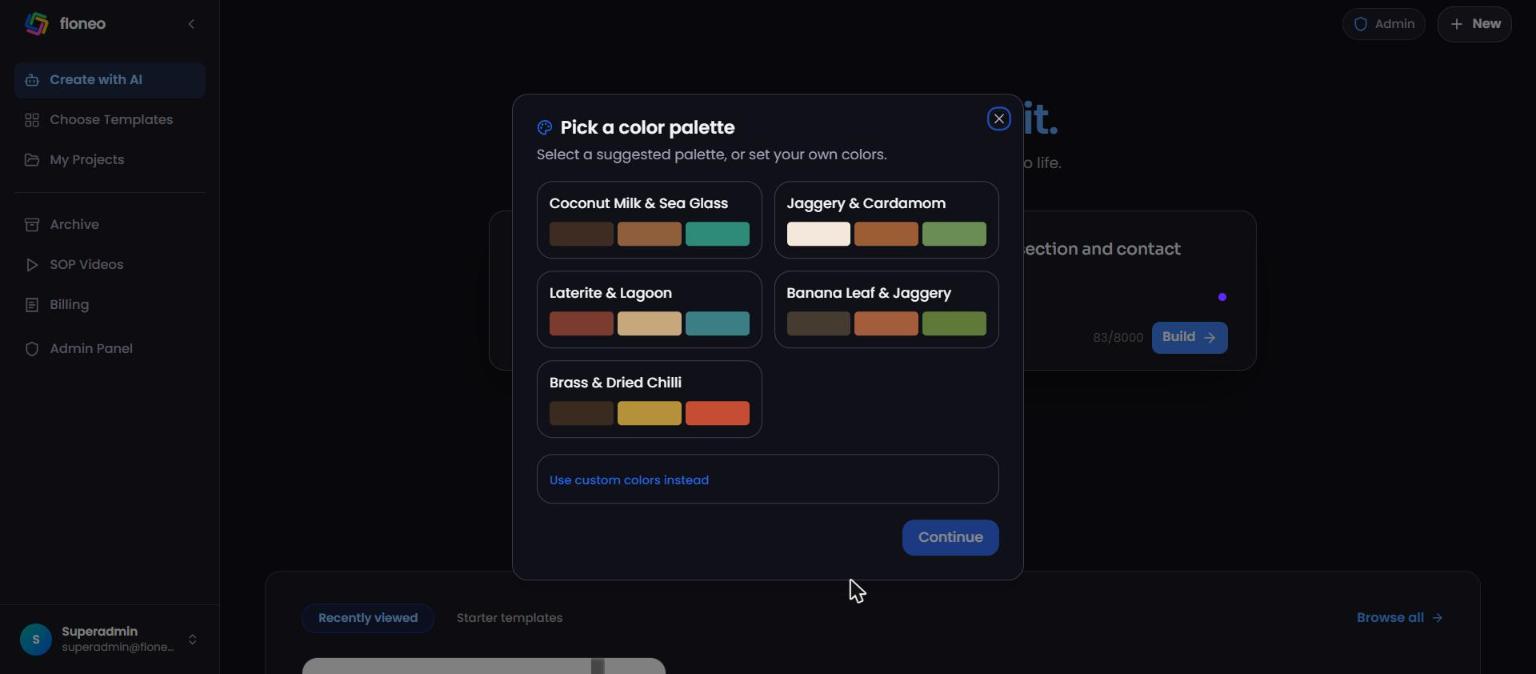
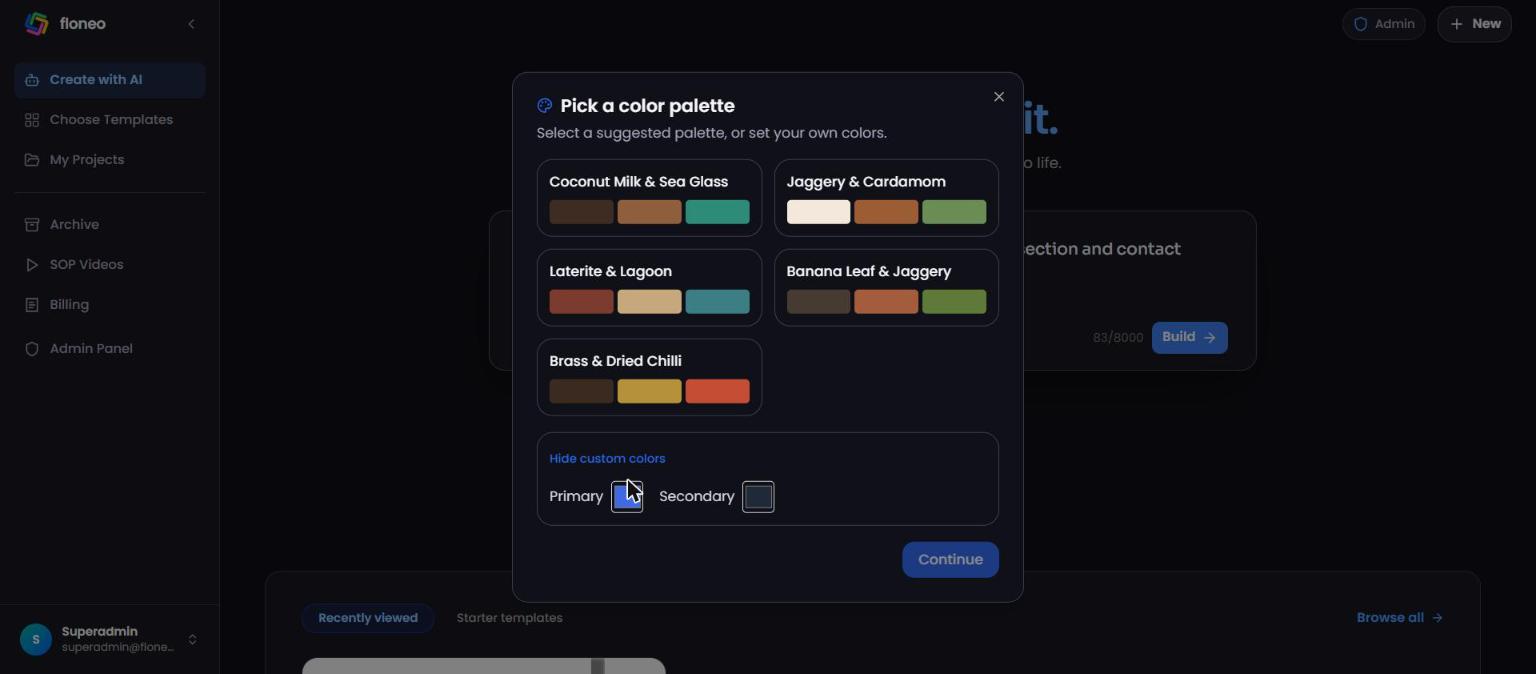
| 4 | Pick a color palette | Choose one or set custom colours → Continue |
| 5 | Review the page structure | Untick sections you don't want → Continue |
| 6 | Review your website plan | Pick a mobile menu style, check everything → Generate website |
| 7 | Building your website | Wait — the editor opens with your site |
You can close the window at any step with ✕ — nothing is built until step 6.
Step 1 — Describe your idea
On the dashboard, type into "What kind of website do you want to build?" and press Build.
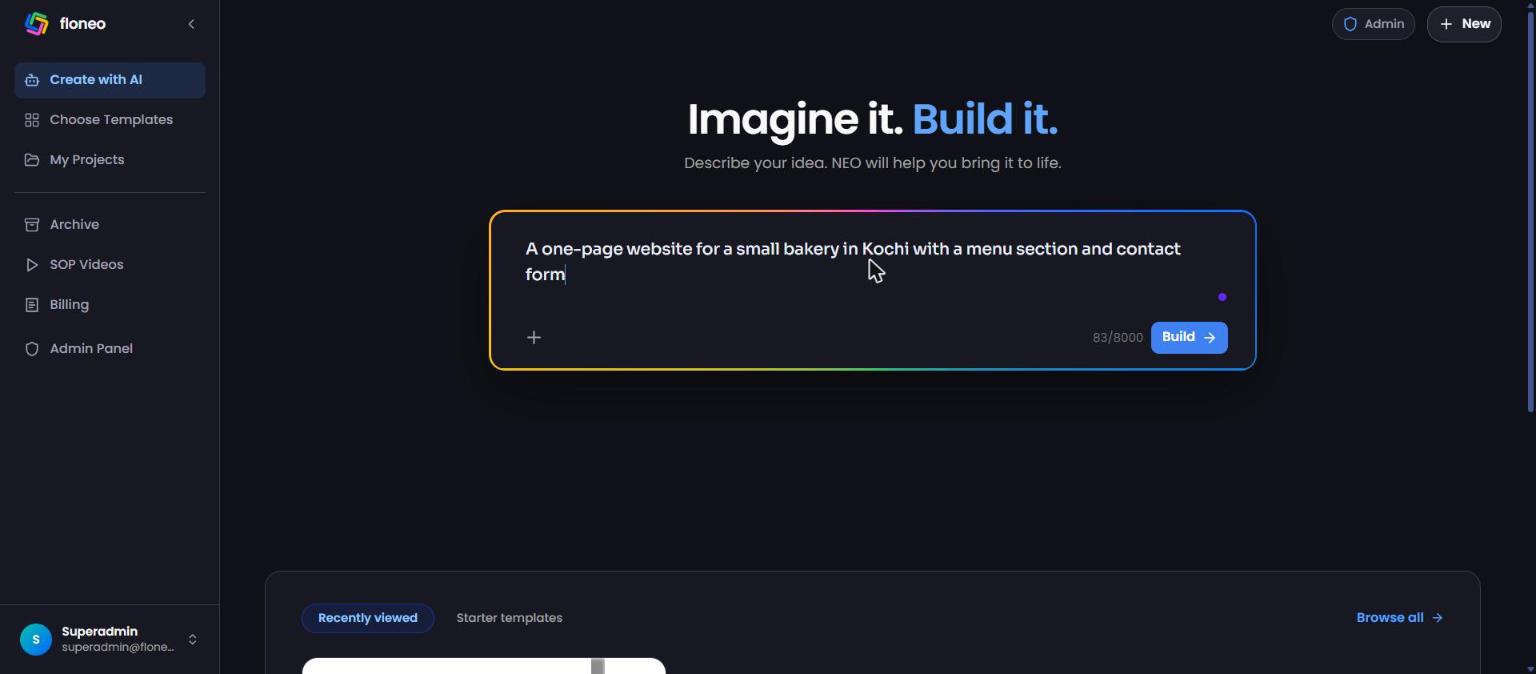
- Up to 8,000 characters (counter shows e.g.
83/8000). - + (Attach files) — add references: images (PNG, JPG, WEBP, SVG, GIF), PDF, DOC/DOCX, TXT, MD, JSON or CSV. You can attach several.
💡 Write a good prompt: say who it's for, what sections you need, and the feel you want. "A one-page site for my yoga studio in Kochi. Sections: hero with class timings, about me, pricing, testimonials, contact form with WhatsApp. Calm, earthy colours."
Step 2 — NEO enhances your idea
NEO reviews your idea and adds useful detail without changing what you asked for.
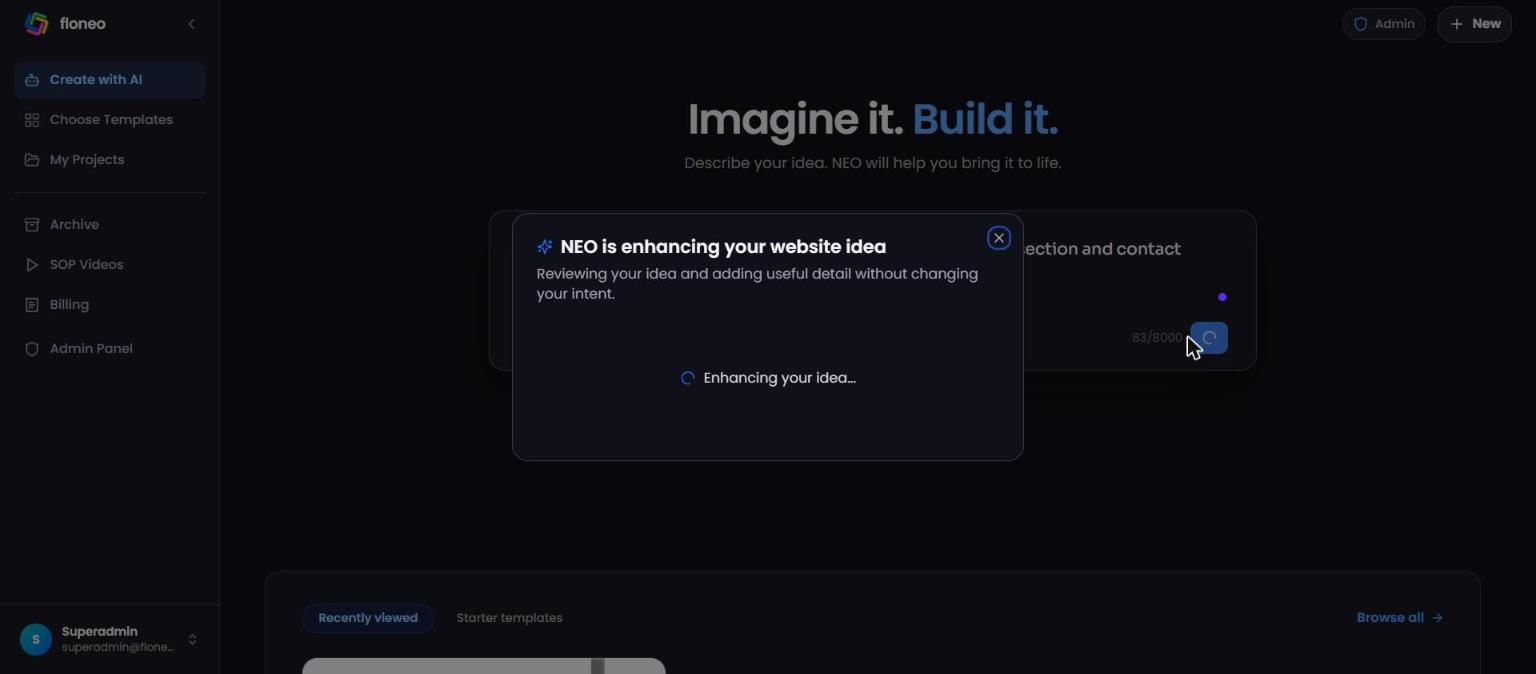
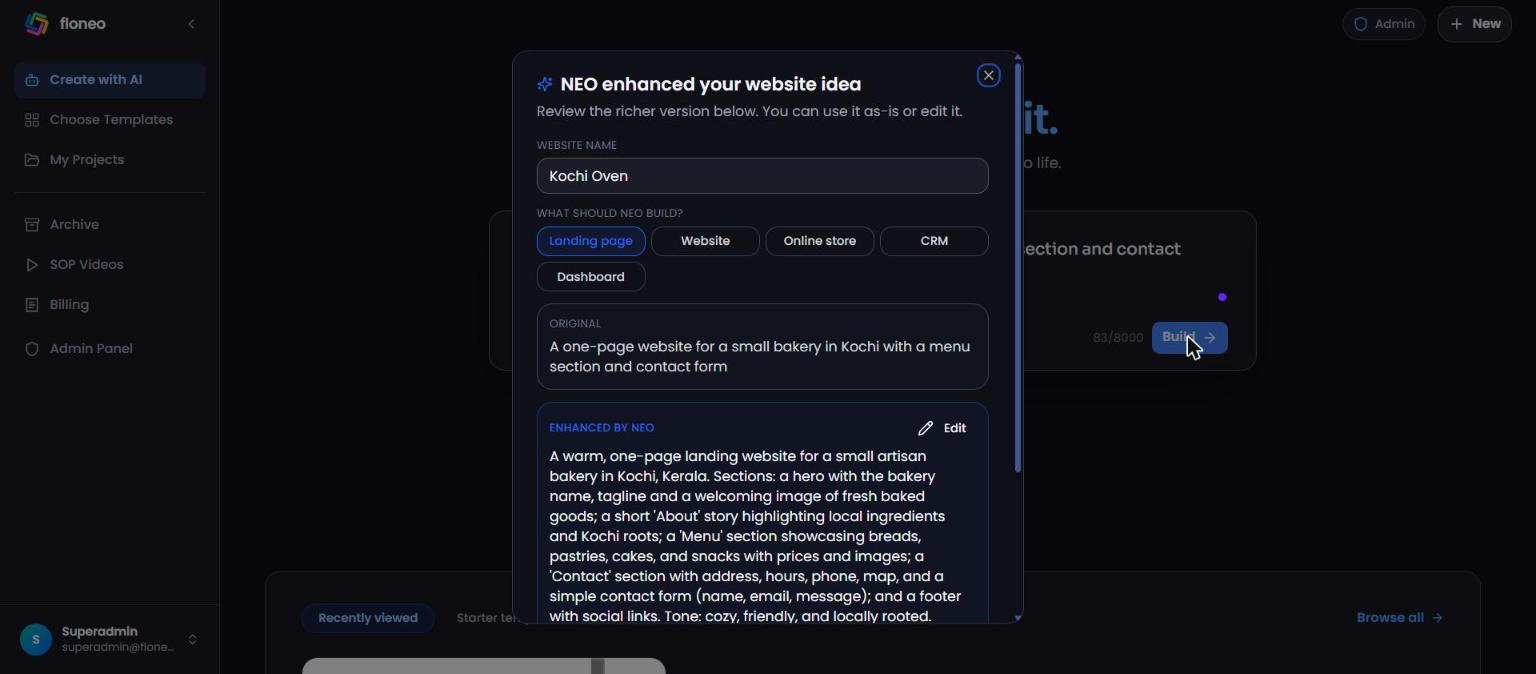
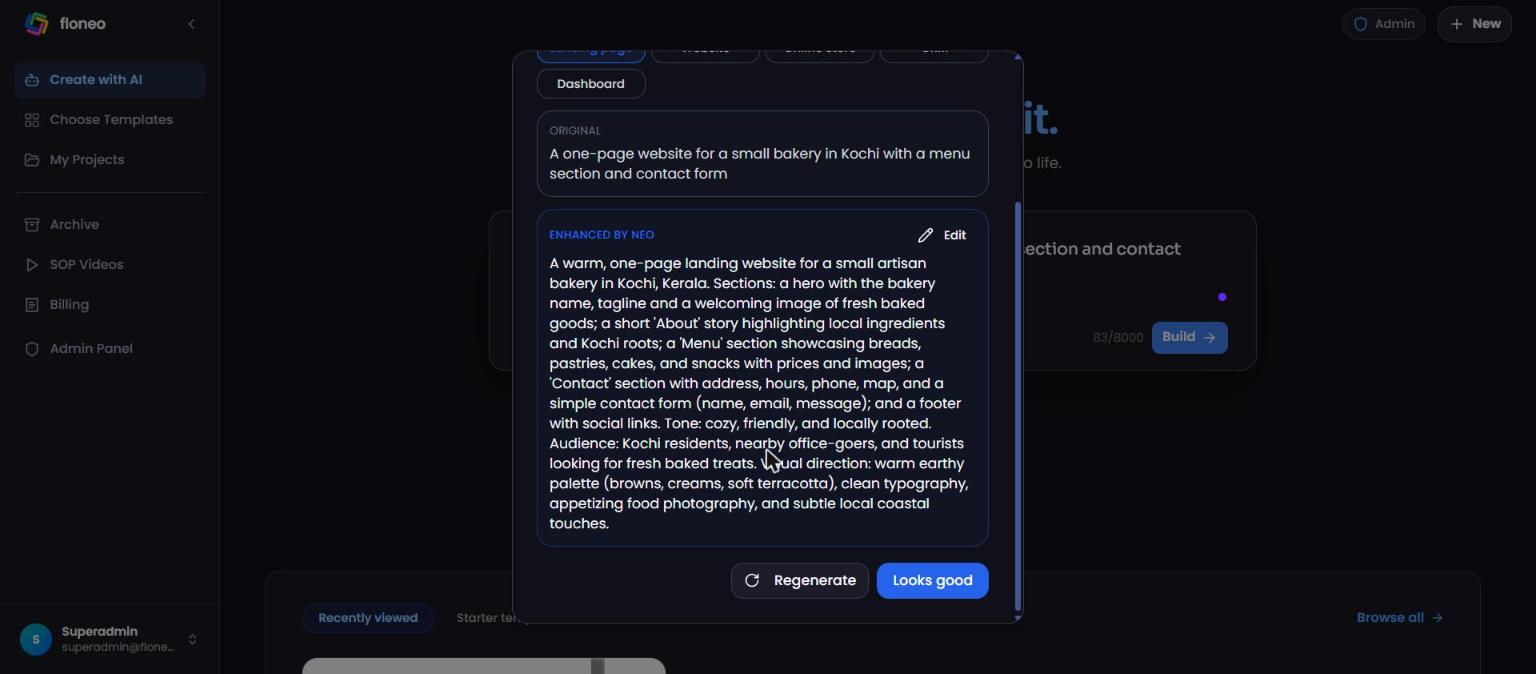
You can:
- Edit the Website name.
- Pick What should NEO build? — Landing page, Website, Online store, CRM or Dashboard.
- Compare your Original with the Enhanced by NEO version, and press Edit to change it.
- Regenerate for a different version, or Looks good to continue.
Step 3 — A few quick questions
NEO asks a handful of questions specific to your idea (for the bakery: name and tagline, menu layout, which social links, address and hours). All optional — skip anything you're not sure about.
💡 Real details here (your phone number, hours, address) mean less editing later.
Step 4 — Pick a colour palette
NEO suggests five palettes that fit your idea's mood. Click one to select it (✓), or Use custom colors instead to set your own Primary and Secondary colours.
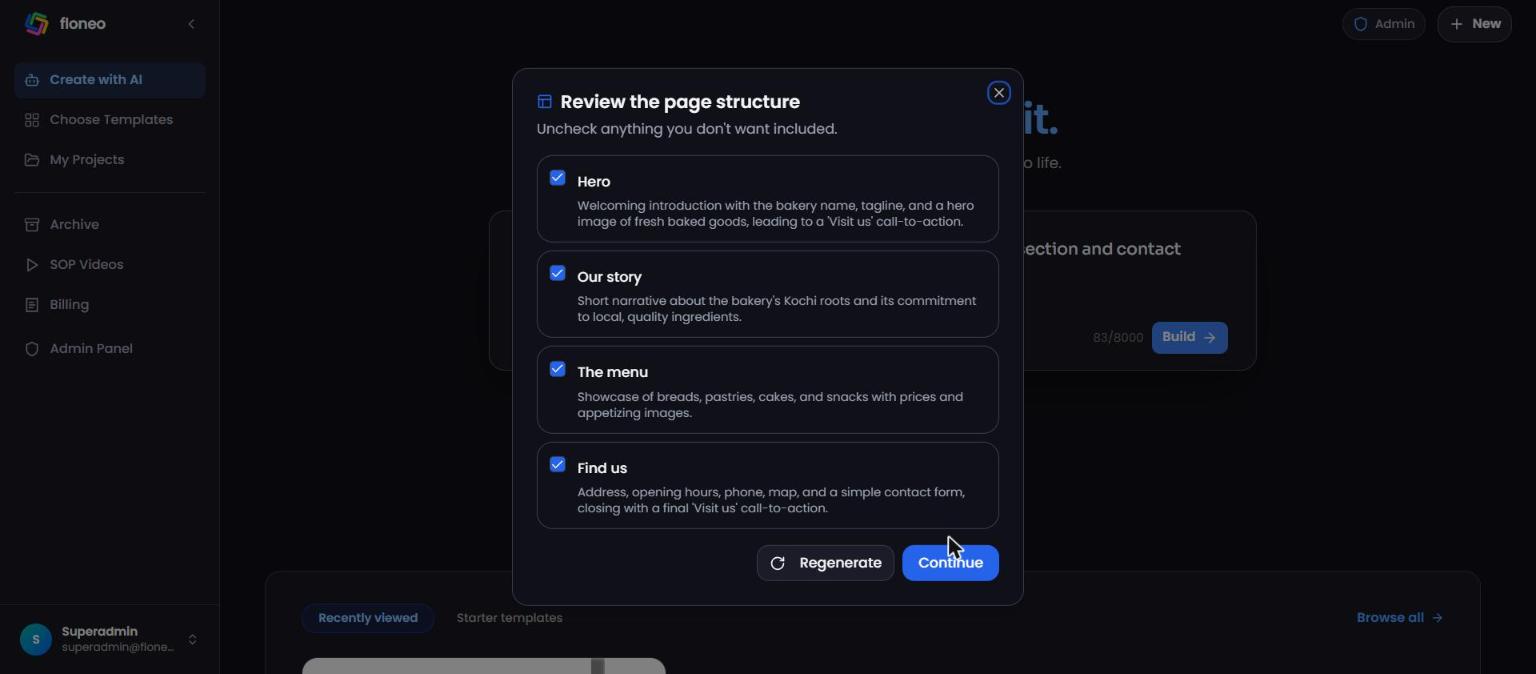
Step 5 — Review the page structure
NEO lists the sections it plans (e.g. Hero, Our story, The menu, Find us), each with a short description. Untick anything you don't want, Regenerate for a different structure, or Continue.
Step 6 — Review your website plan
One last look before anything is built: "NEO won't generate your website until you confirm."
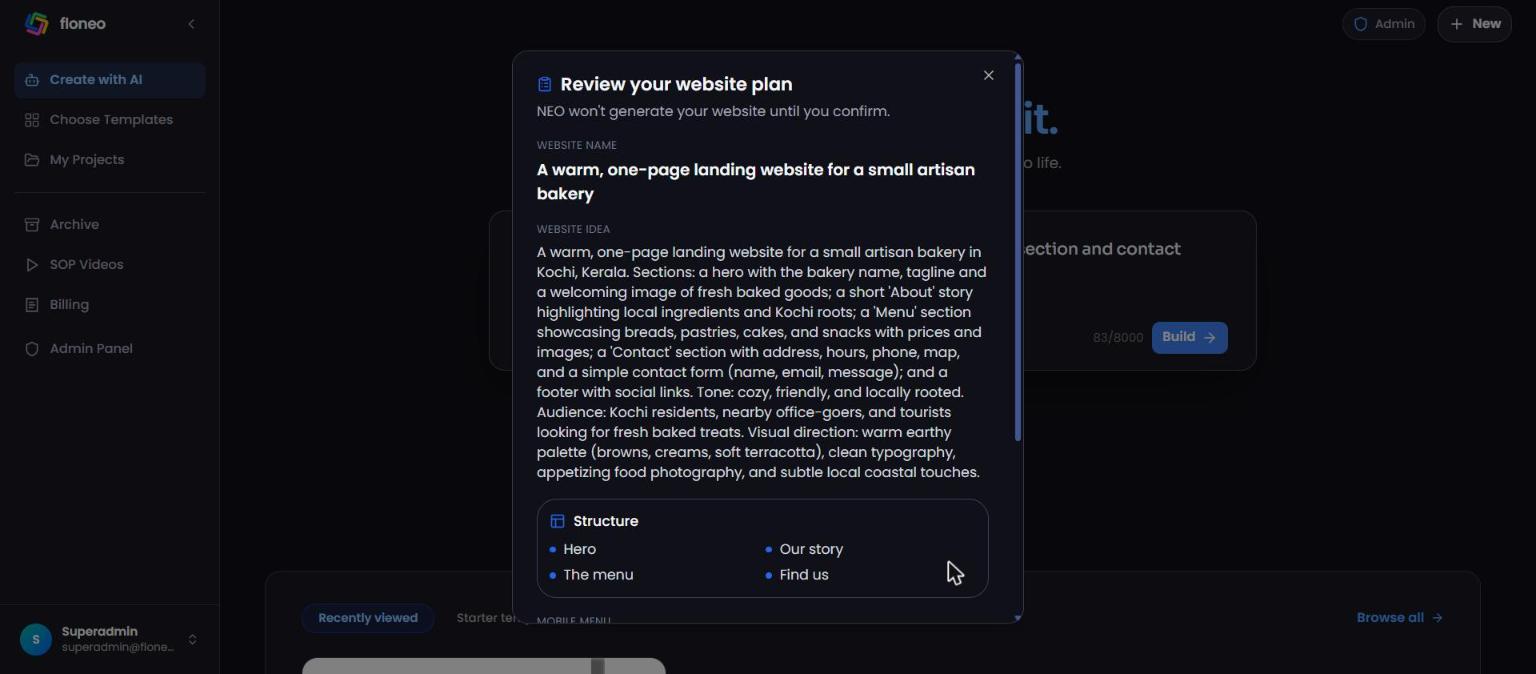
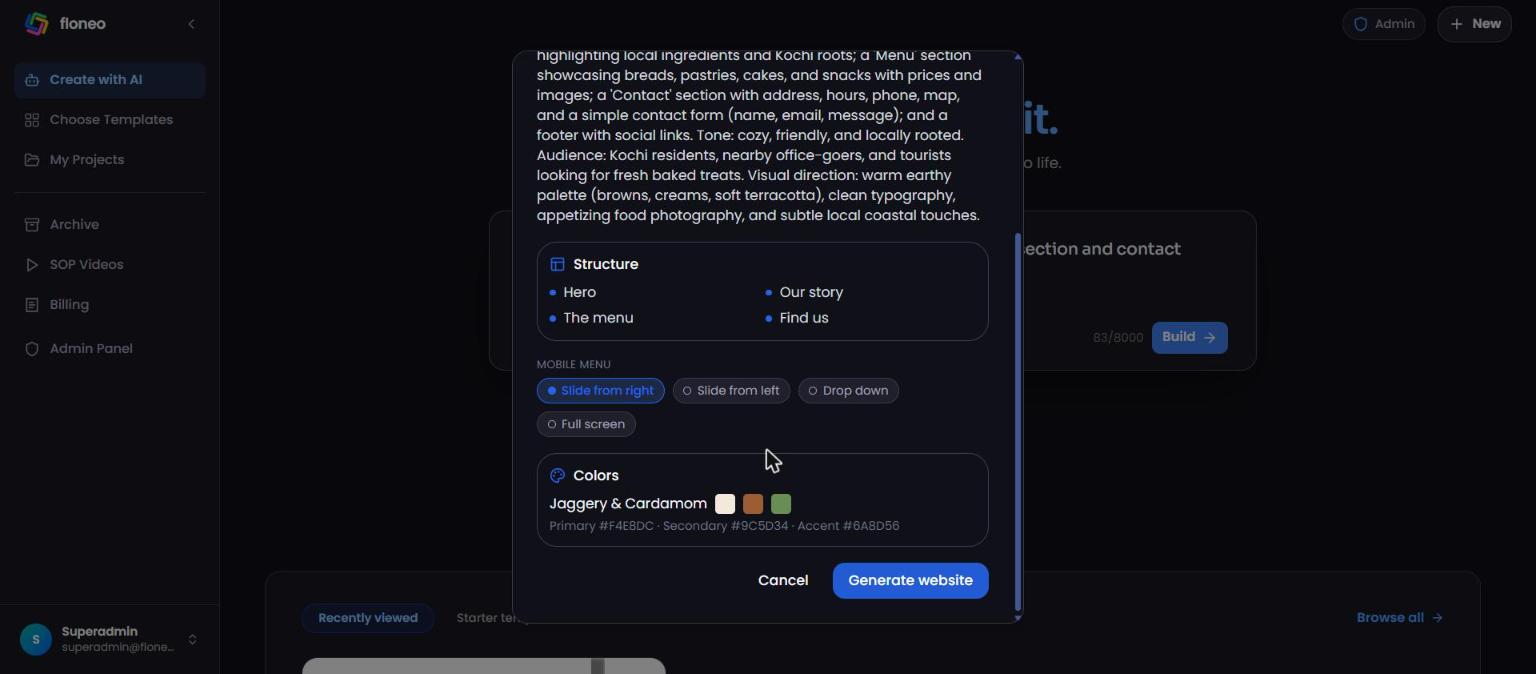
Check the name, idea, structure and colours (with hex codes). Choose a Mobile menu style — Slide from right, Slide from left, Drop down or Full screen. Then press Generate website (or Cancel).
Step 7 — NEO builds your site
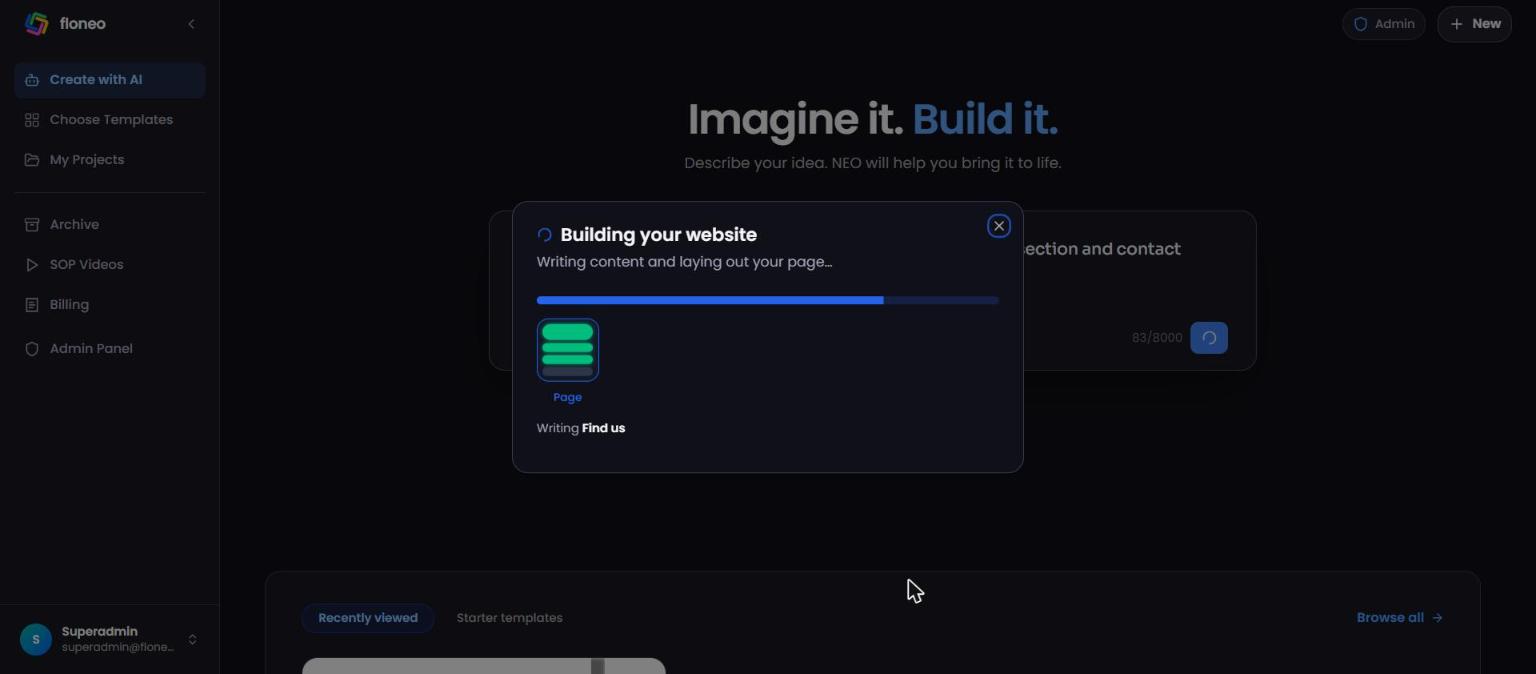
A progress bar shows which section NEO is writing ("Writing Hero", "Writing Find us"…). When it finishes, your site opens in the editor.
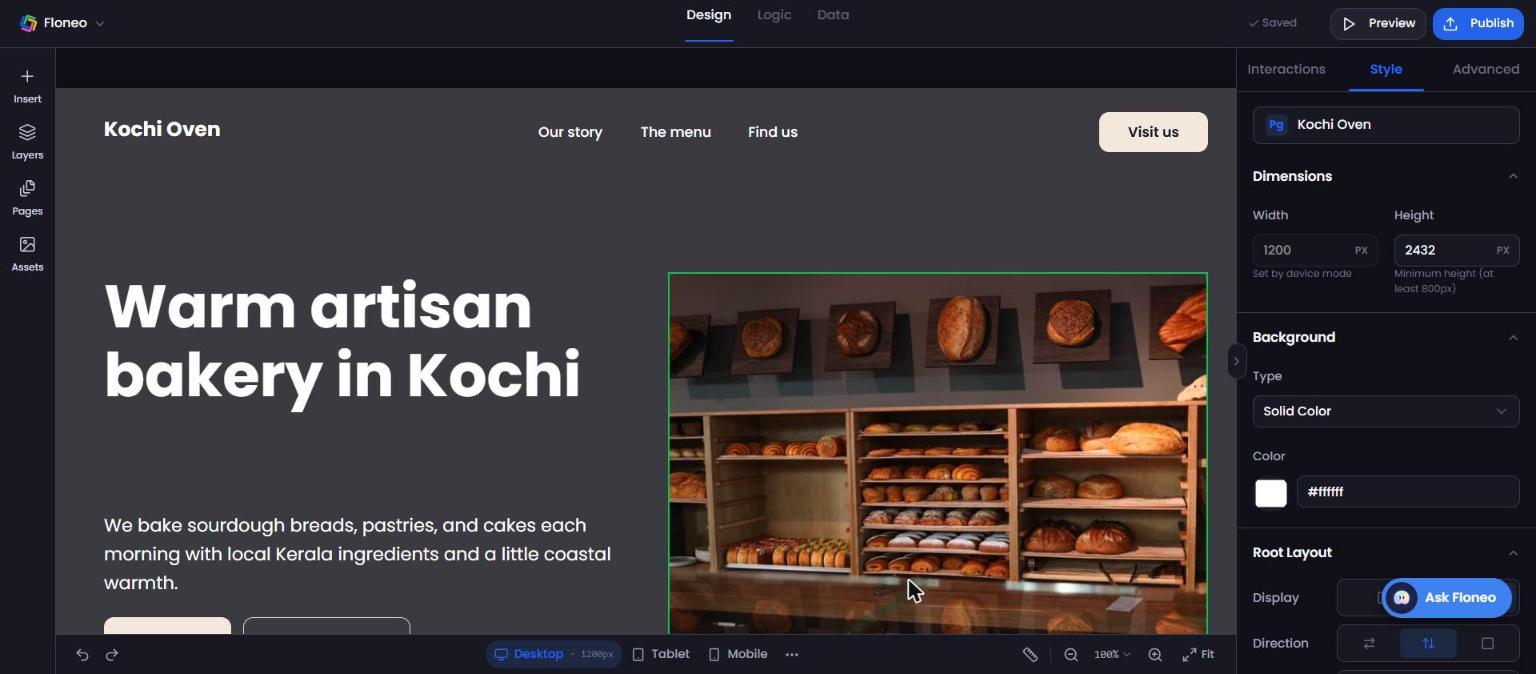
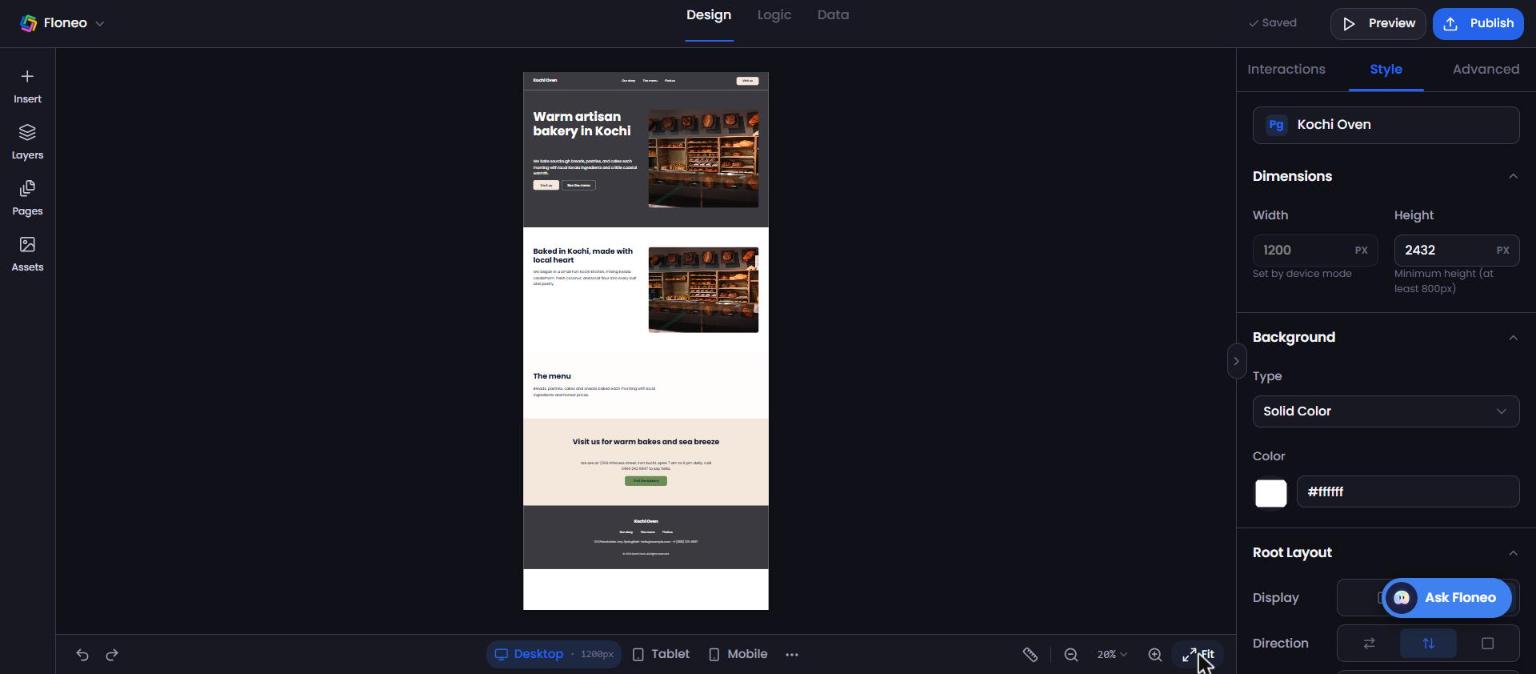
The new app appears in My Projects as a Draft. Nothing is public until you publish.
After the build
- Change text, colours, images, spacing — click anything in the editor. Ordinary visual edits don't need AI. → The editor
- Bigger changes ("add a testimonials section", "make the hero darker") — use Ask Floneo. → Ask NEO
- Check mobile — switch to Mobile under the canvas. → Desktop, tablet and mobile
Troubleshooting
| Problem | What to do |
|---|---|
| Build button is greyed out | Type something in the prompt box first. |
| Build won't start / not enough credits | NEO won't start a build your balance can't cover. Top up (paid plans) or wait for your monthly credits. → Plans & credits |
| A step is stuck on the spinner for over a minute | Close with ✕ and press Build again. Your prompt stays in the box. If it keeps happening, contact support. |
| The result isn't what I wanted | Use Ask Floneo to change parts of it, or start a new build with a more detailed prompt. |
| A section came out empty or thin | Ask NEO: "Fill the menu section with 6 items — name, short description, price." |
Didn't find your answer? Contact support